V1
Print With BuildBee Button
Adding 3D Printing to your website is as easy as embedding the Print With BuildBee button!
Depending on the situation, the simple button may suit, but advanced setup is available for embedding with CORS restrictions or loading from an HTML5 File.
Simple BuildBee Button
If your file is readily accessible from any server then using the simple BuildBee button is the easiest option for embedding BuildBee in your site.
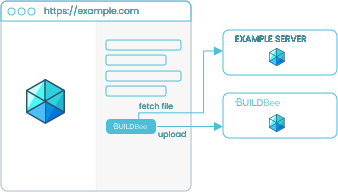
Setting your model file URL
To upload a file from a public server (without CORS restrictions), simply embed this snippet of code, and set the url parameter.
<iframe
    width="120px"
    height="40px"
    frameborder="0"
    scrolling="no"
    style="overflow: hidden"
    title="print with buildbee"
    src="https://sdk.buildbee.com/src/buildbee-button/v1/?url=XXXXX"
></iframe>
Where ?url=XXXXX should be ?url=https://example.com/file.stl.
Example: simple embed from Github
Light Mode Button
To use the light button, add &bg=bg-light after your url parameter
 <iframe
        width="120px"
        height="43px"
        frameborder="0"
        scrolling="no"
        style="overflow: hidden"
        title="print with buildbee"
        src="https://buggy-sdk.buildbee.com/src/buildbee-button/v1/?url=XXXX&bg=bg-light"
    >
Dark Mode Button
To use the dark button, add &bg=bg-dark after your url parameter
 <iframe
        width="120px"
        height="43px"
        frameborder="0"
        scrolling="no"
        style="overflow: hidden"
        title="print with buildbee"
        src="https://buggy-sdk.buildbee.com/src/buildbee-button/v1/?url=XXXX&bg=bg-dark"
    >
BuildBeeClient onRequestFile API (Advanced)
If you can only access the file from your own servers, then the onRequestFile API needs to be used. The idea is that you fetch your own file, then use the BuildBeeClient to upload to BuildBee.
This method is also designed to work with the HTML5 File API.
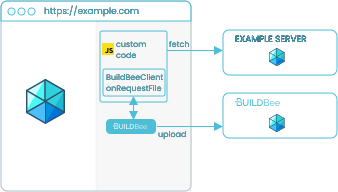
Basic setup
Here is an example that loads a URL using the BuildBeeClient API
In your <head> tag, add the following two scripts.
    <script >

        function onLoadBuildBee() {
            var buildBeeClient = new BuildBeeClient({
                buttonId: "BuildBeeButton1", // the name of the iframe
                onRequestFile: onRequestFile // called on button click
            });

            // When a file is requested, use the BuildBee client to send
            function onRequestFile(e) {
                // TODO: into e.buildBeeClient to upload the file!
                // see examples below.
            }
        }
    </script>
    <script src="https://sdk.buildbee.com/src/buildbee-button/v1/api.js" onload="onLoadBuildBee()" defer></script>
Then embed the button somewhere in your <body>
<iframe
    id="BuildBeeButton1"
    width="120px"
    frameborder="0"
    scrolling="no"
    style="overflow: hidden"
    height="40px"
    title="print with buildbee"
    src="https://sdk.buildbee.com/src/buildbee-button/v1/?buttonId=BuildBeeButton1"
>
</iframe>
| BuildBeeClient | Upload Method |
|---|---|
uploadFromUri |
uploads a URL |
uploadFromFile |
uploads an HTML5 File |
uploadArrayBuffer |
uploads raw file data, used with Fetch or other advanced APIs |
Loading a HTML5 File via BuildBeeClient (Code Sample)
Let the user choose a file and then use BuildBeeClient.uploadFromFile to upload an HTML5 File .
Loading a url via BuildBeeClient (Code Sample)
Use the the BuildBeeClient.uploadFromUri method to upload a url manually.
Example: Loading a URL from the source domain with special CORS permissions.
Fetching your own url via BuildBeeClient (Code Sample)
Use Fetch or Axios or XHR and then upload the response using BuildBeeClient.uploadArrayBuffer.
Example: Using Fetch API from the source domain
Supported file formats
| File Format | Support Level |
|---|---|
| stl | ✅ Supported |
| 3mf | ✅ Supported |
| png | ⚠️ Experimental |
| jpg | ⚠️ Experimental |
| svg | ⚠️ Experimental |
| zips of the above | ✅ Supported |